Understanding Image Resolution: DPI, PPI, and Pixels Explained Simply
Demystify image resolution once and for all. Learn the difference between DPI, PPI, and pixels, and understand how resolution affects print quality and screen display.
If you have ever been confused by terms like DPI, PPI, megapixels, or resolution, you are not alone. These concepts are fundamental to working with digital images, yet they remain mysterious to many photographers, designers, and content creators. This comprehensive guide breaks down everything you need to know about image resolution in plain language.
What Is Image Resolution?
At its core, image resolution refers to the amount of detail an image contains. Higher resolution means more detail, which translates to sharper, clearer images. However, resolution is not a single measurement but rather a combination of factors including pixel dimensions, pixel density, and output size.
Think of resolution like a mosaic. Each tiny tile in a mosaic represents a pixel in a digital image. A mosaic with thousands of tiny tiles can depict intricate details, while one made of larger, fewer tiles appears blocky and lacks fine detail. Digital images work the same way, with more pixels allowing for greater detail and clarity.
Understanding Pixels: The Building Blocks of Digital Images
A pixel, short for picture element, is the smallest unit of a digital image. Each pixel contains color information, and millions of pixels combine to create the images you see on screens and in prints. When you zoom into any digital image far enough, you will eventually see individual pixels as tiny squares of solid color.
Image dimensions are expressed as width times height in pixels. A 1920 x 1080 image has 1,920 pixels across and 1,080 pixels down, totaling approximately 2.07 million pixels, or roughly 2 megapixels. A 4000 x 3000 image contains 12 megapixels. More megapixels generally mean more potential detail, though pixel quality and sensor size also play significant roles.
PPI: Pixels Per Inch for Screens
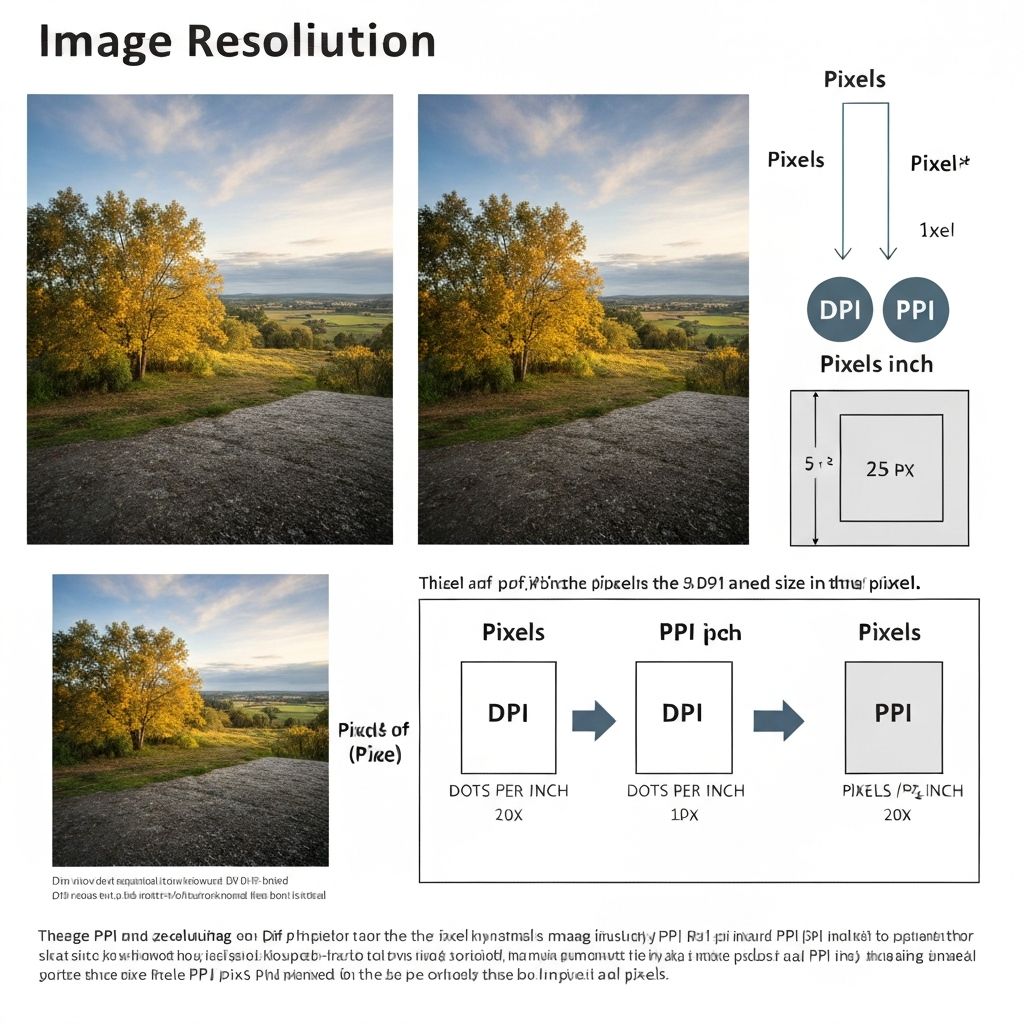
PPI stands for Pixels Per Inch and describes how many pixels are packed into each inch of a digital display. This measurement is crucial for understanding how images appear on different screens. A higher PPI means pixels are smaller and packed more densely, resulting in sharper image display.
Modern smartphones typically have PPI ratings between 300 and 500, which is why images look incredibly sharp on phone screens. Computer monitors usually range from 72 to 150 PPI, with high-end retina displays reaching 200 PPI or higher. The human eye generally cannot distinguish individual pixels at around 300 PPI when held at normal viewing distance.
When designing for screens, the actual PPI of your image file matters less than the pixel dimensions. A 1920 x 1080 pixel image will fill a 1920 x 1080 monitor regardless of what PPI setting is embedded in the file. The monitor's physical PPI determines how sharper that image appears.
DPI: Dots Per Inch for Printing
DPI stands for Dots Per Inch and is specifically a print measurement. It describes how many ink dots a printer places within each inch of paper. Higher DPI means more dots, which typically results in smoother gradients and finer detail in printed output.
Professional print work typically requires 300 DPI, though the actual requirement depends on viewing distance. A billboard viewed from far away might only need 20-50 DPI, while a photo print examined up close needs 300 DPI or higher for optimal quality. Magazine and book printing usually specifies 300 DPI, while newspaper printing often uses 150-200 DPI.
The confusion between DPI and PPI arises because people use these terms interchangeably, but they describe different things. PPI describes the digital image, while DPI describes the print output. When someone asks for a 300 DPI image, they usually mean an image with enough pixels to print at 300 pixels per inch at the desired size.
Calculating Resolution Requirements
To determine if your image has sufficient resolution for a specific use, you need to understand the relationship between pixel dimensions, physical size, and pixel density.
For Print: Multiply your desired print dimensions in inches by your target DPI. For example, an 8 x 10 inch print at 300 DPI requires an image of at least 2,400 x 3,000 pixels (8 x 300 = 2,400 and 10 x 300 = 3,000). This equals 7.2 megapixels minimum.
For Web: Focus on pixel dimensions matching your display requirements. A full-width hero image on a standard website might need 1920 pixels wide for desktop display, while a thumbnail might only need 300 pixels. Higher resolution provides no benefit for web use and only increases file size and load times.
The Formula: Required Pixels = Print Size (inches) x DPI. Conversely, Maximum Print Size = Pixel Dimension / DPI. A 4000 pixel wide image at 300 DPI can print up to 13.3 inches wide (4000 / 300 = 13.33).
Resolution and File Size
Higher resolution images contain more data and therefore create larger files. An uncompressed 12 megapixel image in RGB color takes approximately 36 megabytes of storage (12 million pixels x 3 bytes per pixel). Compression reduces this dramatically, but higher resolution still means bigger files.
This relationship matters for storage, transfer speeds, and web performance. Sending a 50-megapixel image via email when the recipient only needs a small web version wastes bandwidth and storage. Similarly, using unnecessarily high-resolution images on websites slows page load times and frustrates visitors.
The key is matching resolution to purpose. Use high resolution when quality matters, such as prints or archival storage. Reduce resolution for web use, email sharing, or situations where file size matters more than maximum detail.
Upscaling vs. Downscaling: What Happens to Quality
Reducing image resolution, called downscaling, generally maintains quality because you are discarding excess information. A 4000 pixel image reduced to 2000 pixels will look sharp because all the detail needed for 2000 pixels exists in the original.
Increasing resolution, called upscaling, is more problematic. You cannot create detail that does not exist. Traditional upscaling simply makes pixels larger or interpolates new pixels based on surrounding colors, resulting in blurry or artificial-looking images.
Modern AI-powered upscaling tools have improved dramatically, using machine learning to intelligently add detail during enlargement. While not perfect, these tools can double or quadruple resolution with surprisingly good results for many use cases. ImageToolsPro's upscaling feature uses advanced algorithms to enhance images while preserving natural appearance.
Common Resolution Misconceptions
Myth: Higher megapixels always mean better photos. Reality: Sensor quality, lens quality, lighting, and photographer skill matter more than raw megapixel count. A 12-megapixel image from a professional camera often outperforms a 48-megapixel smartphone image.
Myth: Web images should be 72 DPI. Reality: The DPI setting in an image file is irrelevant for web display. Only pixel dimensions matter. An image displays identically whether marked as 72 DPI or 300 DPI if the pixel dimensions are the same.
Myth: You can always make images bigger. Reality: While AI upscaling has improved, you cannot magically create detail that was never captured. Starting with the highest resolution practical for your needs remains the best approach.
Practical Resolution Guidelines
Social Media Posts: 1080 x 1080 pixels for Instagram squares, 1200 x 630 for Facebook links, 1500 x 500 for Twitter headers. These sizes balance quality with fast loading.
Website Images: Hero images at 1920 pixels wide, content images at 800-1200 pixels wide, thumbnails at 300-400 pixels. Always compress for web using tools like ImageToolsPro.
Print Projects: Calculate based on final print size times 300 DPI. For a 24 x 36 inch poster, you need at least 7,200 x 10,800 pixels, or about 78 megapixels.
Email Attachments: Resize to 1024-2048 pixels on the longest edge for easy viewing without excessive file sizes. Most email services compress images anyway.
Conclusion
Understanding image resolution empowers you to make informed decisions about capturing, editing, and sharing your images. Remember that resolution is about matching pixel count to your intended use. More is not always better, and the right resolution depends entirely on how and where your image will be displayed. Use tools like ImageToolsPro to resize your images to optimal dimensions for any purpose while maintaining the best possible quality.