Print vs Digital: How to Optimize Images for Different Output Formats
Master the art of preparing images for both print and digital media with proper resolution, color profiles, and format considerations.
The same image may look stunning on screen yet print poorly, or appear perfect in print but oversized and slow-loading on the web. Understanding the fundamental differences between print and digital image requirements helps you prepare visuals that excel in any medium.
Resolution: The Core Difference
Resolution—the amount of detail an image contains—is measured differently for print and digital contexts. Screen resolution uses pixels per inch (PPI), while print resolution uses dots per inch (DPI). Though often used interchangeably, these measurements serve different purposes.
Computer monitors typically display at 72-96 PPI, while modern phones and tablets reach 300+ PPI with Retina-style displays. Print, however, requires much higher resolution for quality results. Standard print resolution is 300 DPI, meaning a 4x6 inch print needs an image of at least 1200x1800 pixels.
Upscaling low-resolution images for print rarely produces good results. The software must invent detail that doesn't exist, typically resulting in blurry or pixelated prints. Always capture or source images at the highest resolution you'll need.
Color Models: RGB vs CMYK
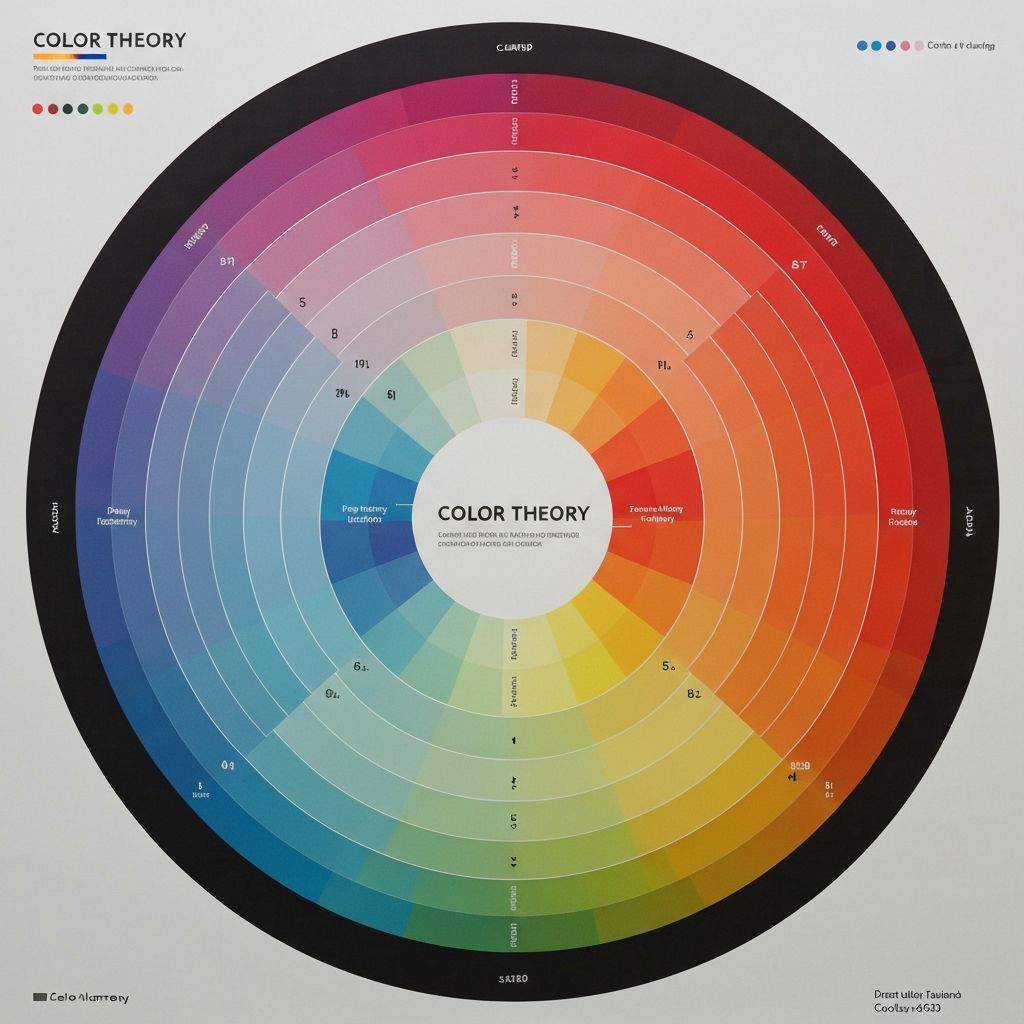
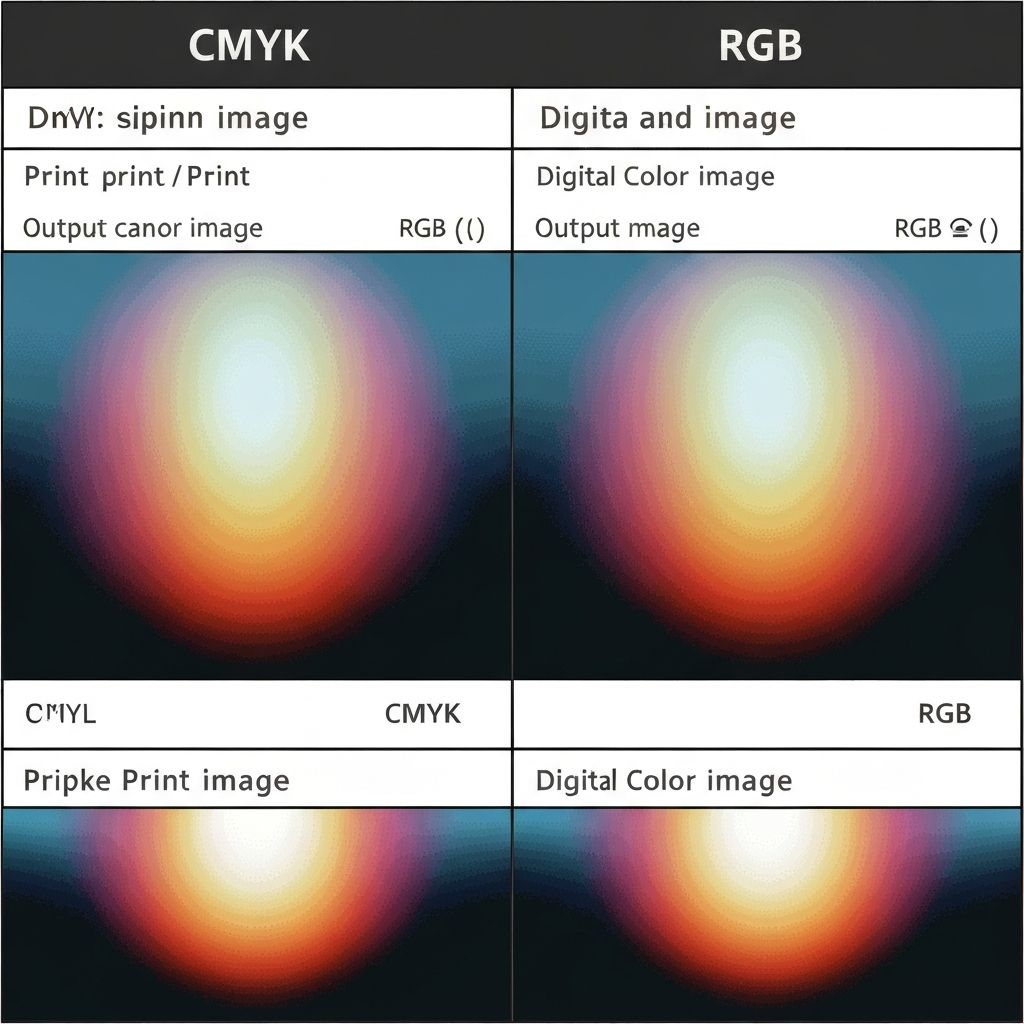
Digital displays create colors by combining red, green, and blue light (RGB). This additive color model can produce vibrant, luminous colors because screens emit light directly into your eyes.
Print uses cyan, magenta, yellow, and black inks (CMYK), a subtractive color model. Colors appear when light reflects off the printed surface, inherently limiting the achievable vibrancy. Some brilliant digital colors—particularly saturated blues and greens—simply cannot be reproduced in print.
Converting RGB images to CMYK before printing prevents unexpected color shifts. Professional print shops require CMYK files, and doing the conversion yourself gives you control over how colors translate. Software like Adobe Photoshop provides soft-proofing features that simulate how images will appear when printed.
File Formats for Print
Print projects typically use TIFF or high-quality PDF formats. TIFF supports high bit depths, CMYK color, and lossless compression, preserving maximum image quality. PDF files can embed fonts and graphics while maintaining print-ready specifications.
JPEG works for print but introduces compression artifacts with each save. If using JPEG, save at maximum quality (100%) and avoid repeatedly opening and saving the file. The cumulative quality loss from multiple saves becomes visible in prints.
Avoid PNG for professional printing. While PNG supports transparency and lossless compression, it uses RGB color and may not be accepted by print services expecting CMYK files.
File Formats for Digital
Web images prioritize small file sizes for fast loading. JPEG remains the standard for photographs, offering excellent compression with acceptable quality loss. WebP provides even better compression and is now supported by all major browsers.
PNG excels for images requiring transparency or containing text, logos, and graphics with sharp edges. Its lossless compression prevents artifacts but results in larger files than JPEG for photographs.
SVG (Scalable Vector Graphics) is ideal for logos, icons, and illustrations. As vector files, SVGs scale infinitely without quality loss and often have tiny file sizes. However, they're unsuitable for photographs or complex images.
Preparing Images for Print
Start with the highest quality source available. If shooting specifically for print, use your camera's highest resolution setting and consider shooting in RAW format for maximum editing flexibility.
Ensure your image dimensions meet print requirements. Calculate needed pixels by multiplying the print dimensions by 300 DPI. A poster measuring 18x24 inches requires an image of 5400x7200 pixels—that's nearly 39 megapixels.
Add bleed if your print extends to the edge. Bleed—extra image area beyond the trim line—prevents white borders if cutting is slightly off. Standard bleed is 0.125 inches (3mm) on each side.
Preparing Images for Web
Web images should be as small as possible while maintaining acceptable quality. Every kilobyte affects page load time, user experience, and search engine rankings. Google explicitly uses page speed as a ranking factor.
Resize images to their display dimensions. An image displayed at 800 pixels wide shouldn't be 4000 pixels wide—the extra resolution wastes bandwidth without improving appearance. Responsive images using srcset allow browsers to choose appropriate sizes for different devices.
Compress images appropriately. For JPEG, quality settings of 70-85% typically provide good balance between size and quality. WebP can achieve similar visual quality at 60-70% of JPEG's file size.
Color Profiles and Consistency
Color profiles define how colors should be interpreted. sRGB is the standard for web, ensuring consistent appearance across different monitors and browsers. Wide-gamut profiles like Adobe RGB or Display P3 can produce colors outside sRGB's range.
For print, use the color profile specified by your print service. Different printers and papers require different profiles. Generic CMYK may not match your printer's actual output, leading to unexpected results.
Embed color profiles in your files to preserve color intent. Without embedded profiles, software makes assumptions that may not match your intentions, potentially shifting colors noticeably.
Using ImageToolsPro for Print and Digital
ImageToolsPro helps prepare images for both print and digital use. Our resize tool lets you specify exact dimensions in pixels, ensuring web images match their display size and print images meet resolution requirements.
For web optimization, our compression tools reduce file sizes while maintaining visual quality. Compare original and compressed versions side-by-side to find the optimal balance for your needs.
Our format conversion tools help you create the right file type for each purpose—JPEG or WebP for web, high-quality formats for print preparation. Convert between formats without repeatedly degrading quality.
Conclusion
Print and digital media have fundamentally different requirements, but understanding these differences empowers you to create images that excel in any context. Plan ahead, work with appropriate resolution and color settings, and use the right formats for each destination. With proper preparation, your images will look their best whether displayed on screen or hanging on a wall.